


RESOURCES / BLOG / NEWS
Announcement: The Redesigned VidSense Panel and First-Login Flow
Contents
What changed
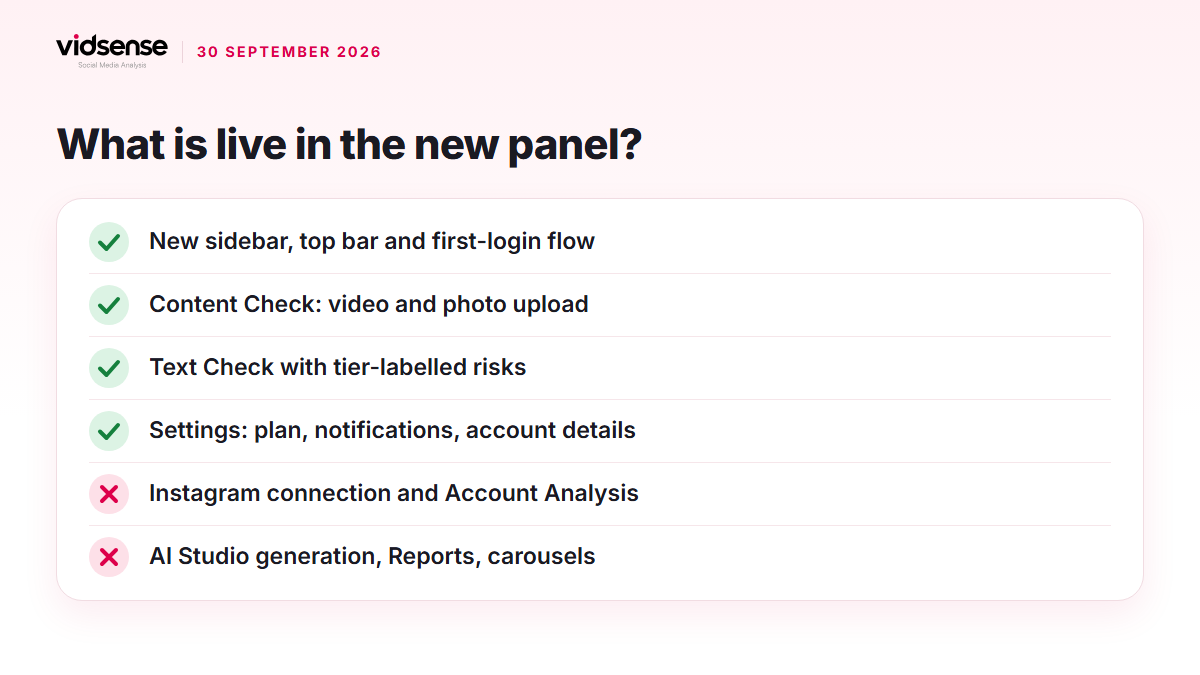
On 30 September 2026 the user panel was rebuilt end to end on the new design and went live. The shell, Overview, Content Check and its result screens, My Content, Account Analysis, AI Studio, Reports, Settings and the first-login flow all moved to the same visual language. The Competitors page was removed from the product.
This post keeps two things clearly apart: the sections that work today and the ones that come later. Instagram account connection, and the account analysis that depends on it, are not live yet; we are not giving a date.
The new shell: sidebar and top bar
The panel now opens with a floating sidebar card on a light grey canvas. The menu has eight entries: Overview, Account Analysis, Content Check, My Content, AI Studio, Reports, Settings, Help & Support.
The plan card under the sidebar shows one of three states: a "WELCOME TO VIDSENSE" card when nothing has been used yet, a "FREE PLAN" card on the free plan, and a "remaining / total checks" counter on a paid plan. Users without a display name see their email address in the menu.
The top bar holds the page title, an account selector ("No account connected yet"), a period selector (Last 30 days; 90 days on higher plans), a language switch (Türkçe / English) and a profile shortcut. The Notifications and Upgrade buttons say "Coming soon" for now.
The first-login flow
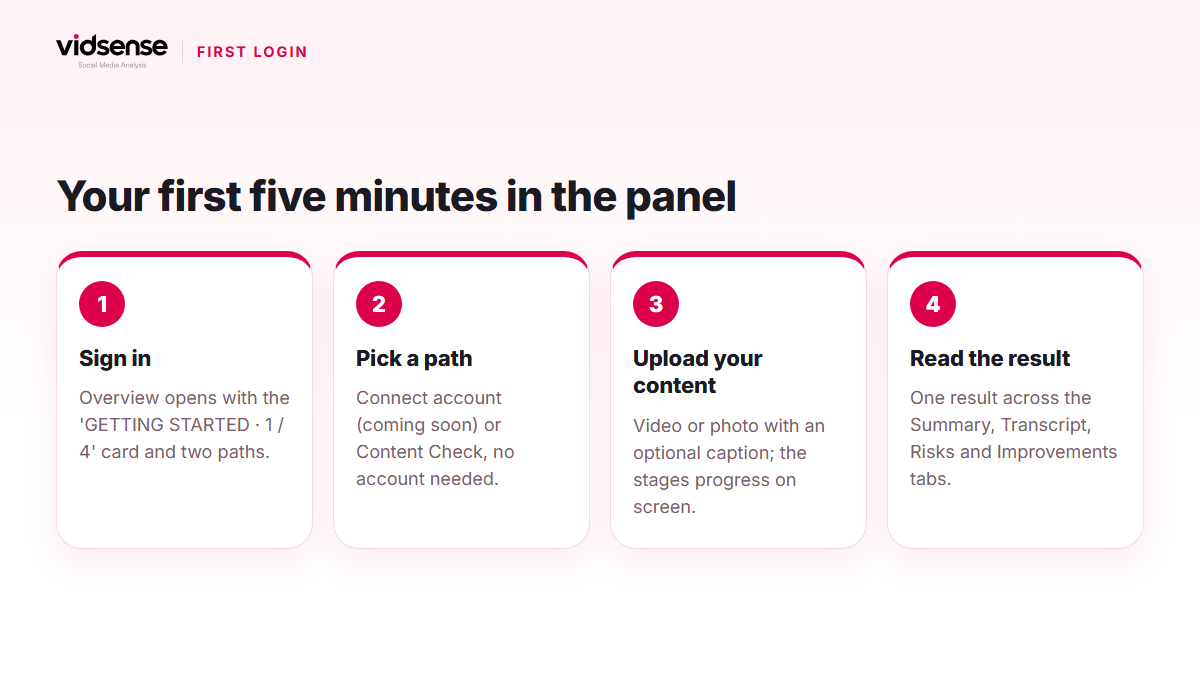
On first login, Overview opens with a "GETTING STARTED · 1 / 4" progress card: Connect account, First analysis, See insights, Improve content. Two paths sit below it.
- Analyze my account: the screen prepared for connecting Instagram. Because the connection is not live yet, the button shows a "Coming soon" notice; TikTok and YouTube are listed with a "Coming soon" label too.
- Check before you publish: marked with the "USE WITHOUT AN ACCOUNT" badge, the path that works today. Upload a Reel, video or photo and see the VidSense Score and possible risk signals.
The insights and performance cards show an empty state because no account is connected; the note "Reviewing content you already have doesn't require connecting an account" repeats on the empty screens.
The Content Check screens
The Content Check page has two tabs at the top: Post & Reels and Text.
Post & Reels: upload an MP4 or MOV video or a JPG, PNG or WEBP photo (up to 500 MB) and add a caption of up to 2,200 characters if you like. The "What do we review?" card lists six items: the first 3 seconds of the opening, pacing and watch-through flow, fit with your target audience, clarity of the message, on-screen text and CTA, possible platform policy risk. During upload there is a progress bar and a "Stop upload" option; past checks are listed at the bottom of the page and can be deleted. Checking by pasting an Instagram link, and carousel upload, are not open yet.
Once the upload finishes, the processing screen shows the stages: preparing the file, transcribing speech (for photos, reviewing the image), scanning for risks, preparing the result. The result page has four tabs: Summary (VidSense Score, decision badge, six sub-scores, priority improvement, possible risk), Transcript (time-stamped speech and on-screen text with flagged phrases highlighted), Risks (level, tier label, source, quote, reason, safer alternative) and Improvements (in priority order). Every risk card has a "This flag is wrong" feedback button. "Save report" shows a "coming soon" note for now.
Text: paste your caption or start from one of the examples; you get the text score, its band, four dimension cards, general advice, a "Turn into a content idea" card and the flagged phrases with tier labels. Past text checks sit at the bottom of the page.
Settings and the other pages
Settings & Subscription: the active plan with remaining content checks and the renewal date; the Connected account card ("Coming soon"); notification switches for the weekly summary, risk flags and the plan usage warning; full name, email, language and time zone. Notification preferences and changes to your name and language are saved.
Account Analysis, My Content, Reports: in their empty state because they need a connected account; they fill up once connection arrives. AI Studio: the four tool cards (Content ideas, Hook generator, Caption writer, Improve my content) are in place, with generation "Coming soon". Help & Support: links to the Help Center, FAQ, Academy and Policy Center.
Check it with VidSense
To see the new panel, sign in or create a free account; from the first-login screen, go to Content Check and upload a Reel. We will announce it here when account connection and account analysis open. Policy signals show possible risk; they are not an official Meta decision.
Contents
Check your content before you post it.
Use Content Check to see potential risk signals before you publish.
Check your content →Keep reading
News · 5 min read
Announcement: The VidSense Resource Center Is Live
VidSense's Resources section is open: the Policy Center, Content Guides, VidSense Academy, Help Center, FAQ and Blog under one roof, with no sign-up and in two languages. Here is what is open in full today and what is being added, section by section.
October 14, 2026
Product · 5 min read
Removal Risk, Reach Risk, Legal Risk: VidSense's Risk Tiers
Every risk card in VidSense carries a tier label: Removal risk, Reach risk or Legal risk. This post explains how the three tiers map to how Instagram actually enforces its rules, with neutral examples and the effect on your score.
October 18, 2026
Policy · 5 min read
Music and Copyright in Reels: Which Audio Is Safe to Use?
Licensed music, original audio and the Sound Collection are not the same thing in Reels. Here is which audio shows up for which account type, what happens when a track is muted later, and how to stay on the safe side, with official sources.
October 17, 2026